
Stripe is a simple credit card payment gateway that easily integrates into WordPress WooCommerce websites. If you are looking for a simple way to start taking cards on your account, Stripe is a great choice.
For transactions using European cards, fees are just 1.4% + 20p per transaction.
If we are integrating Stripe into your website, it is useful to have delegated access. This does not allow us to touch your funds, but it does allow us to setup the relevant link between your website and your Stripe account.
Once you have created your Stripe account, follow the steps below to delegate access.
Login to your dashboard at dashboard.stripe.com
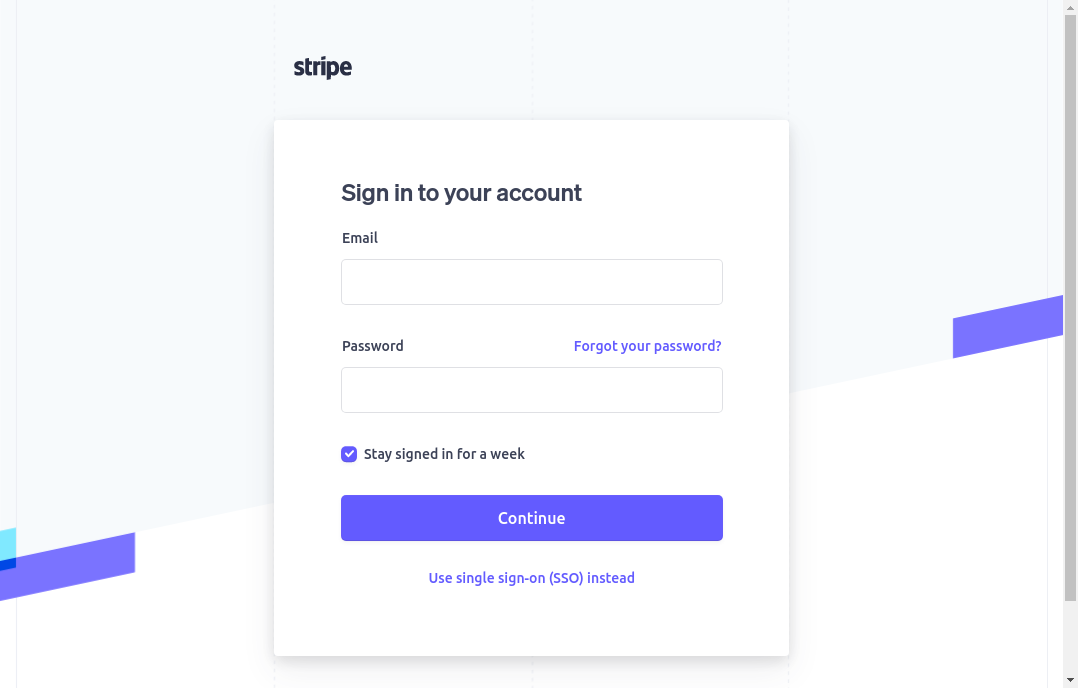
Visit dashboard.stripe.com to login.
Complete the 2 Factor Authentication Step
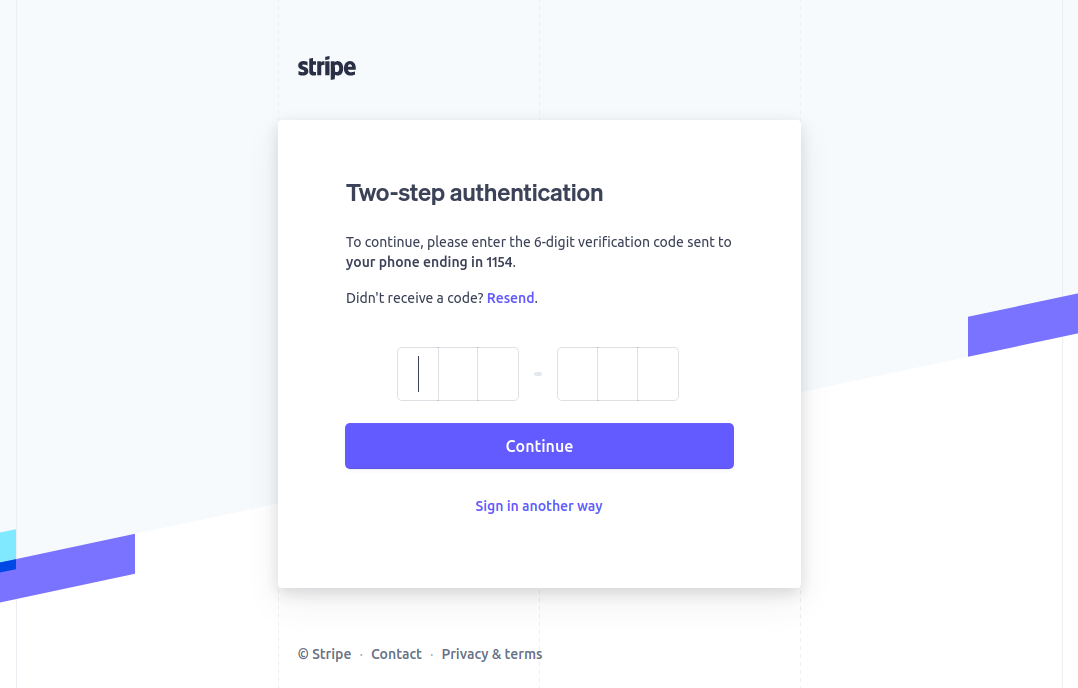
If Stripe doesn’t recognise your browser, it may send you a text message with a code to confirm it is really you logging in.
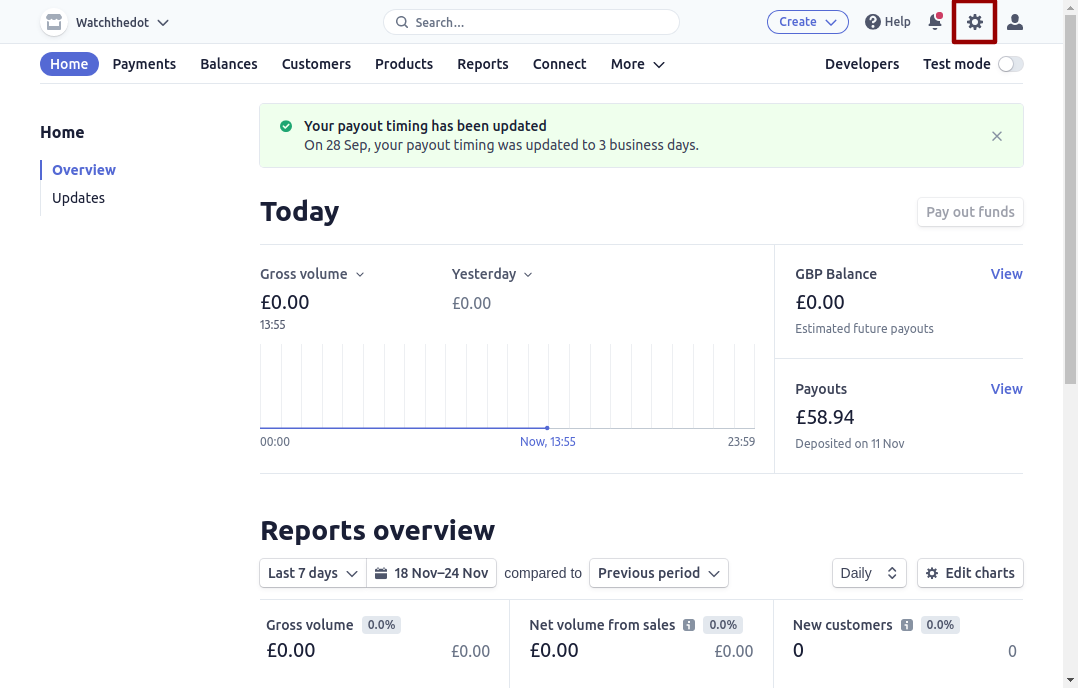
Select the Settings (cog) Icon
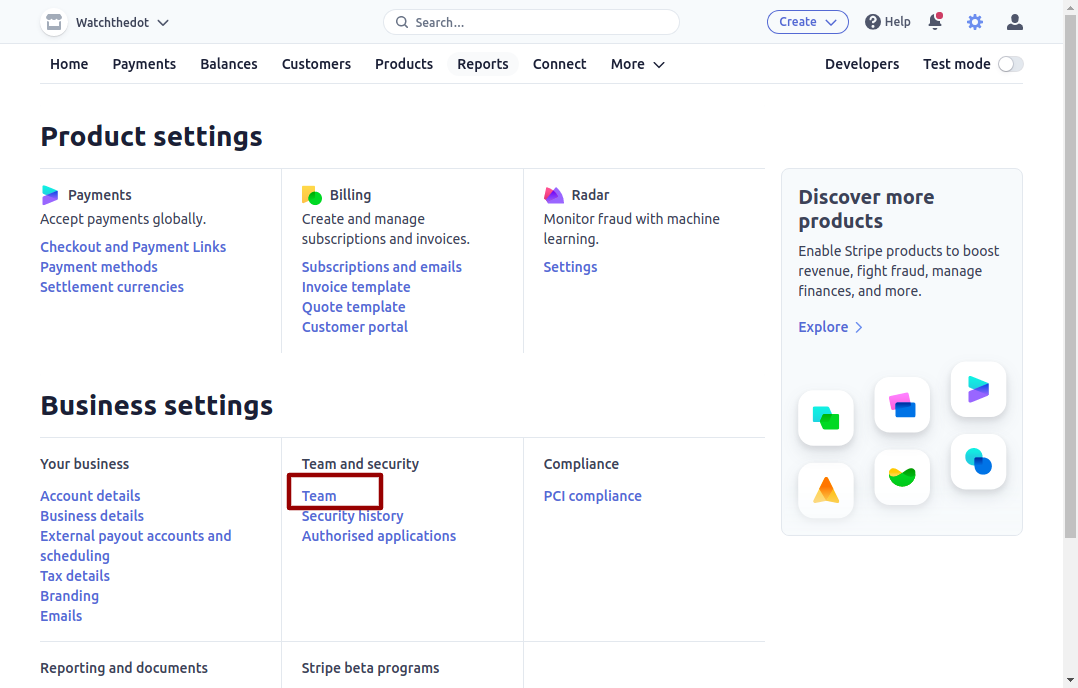
Select the “Team” item under “Business Settings”
Select “New Member”
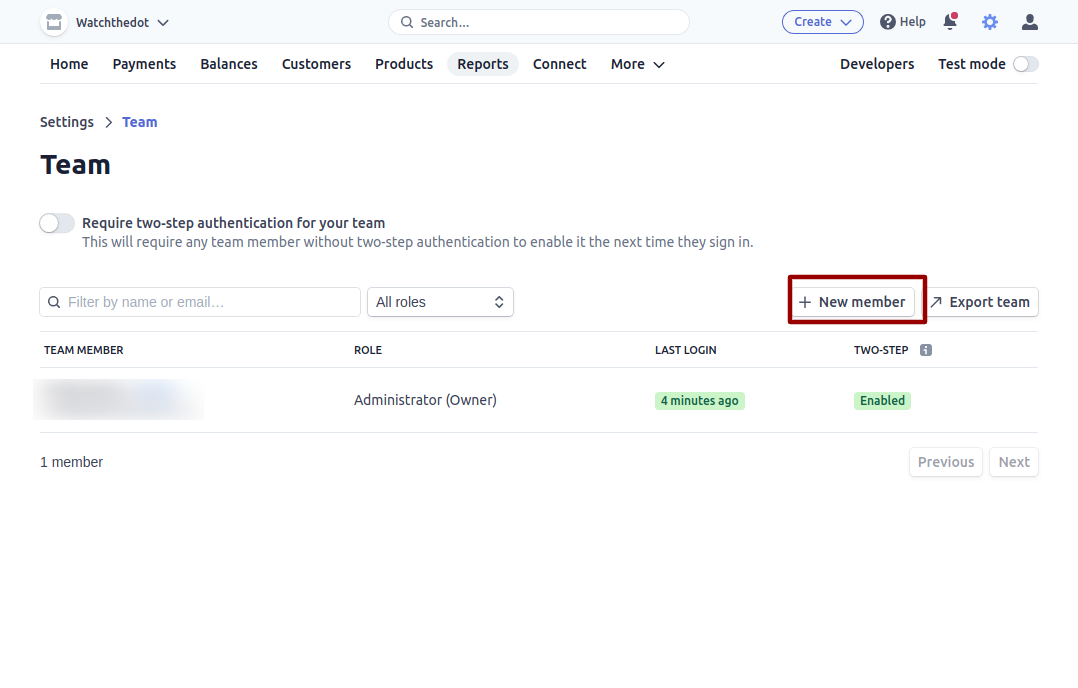
Complete the New Member Form
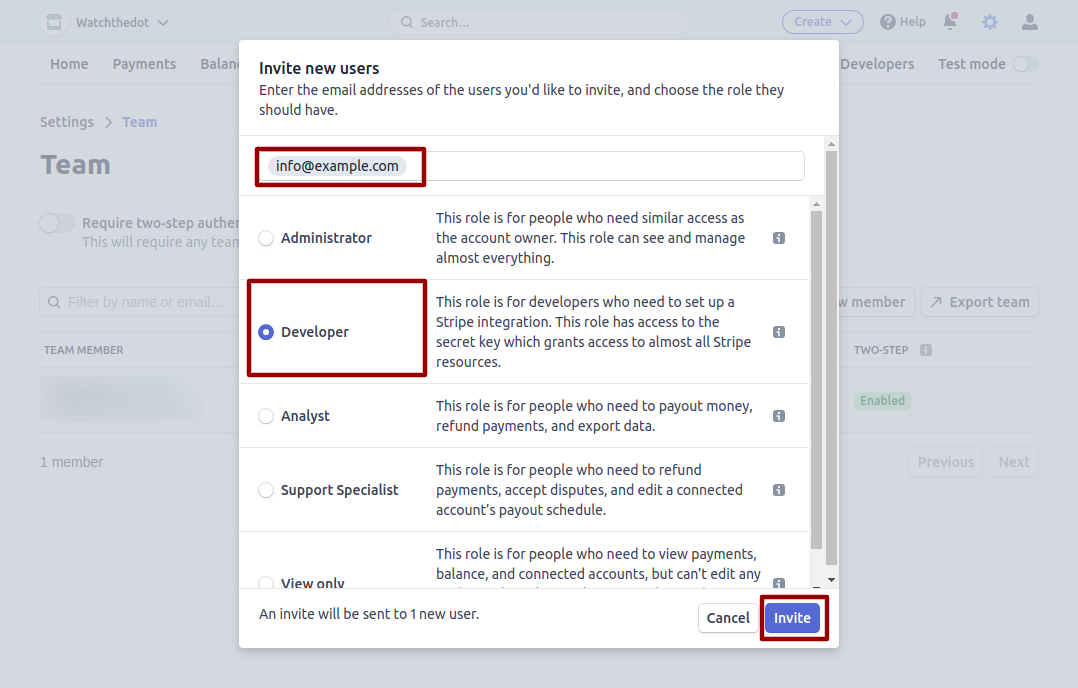
Add the email address provided by your developer
Select “Developer”. This role is for developers who need to set up a Stripe integration. This role has access to the secret key which grants access to almost all Stripe resources.
Click “Invite” Button
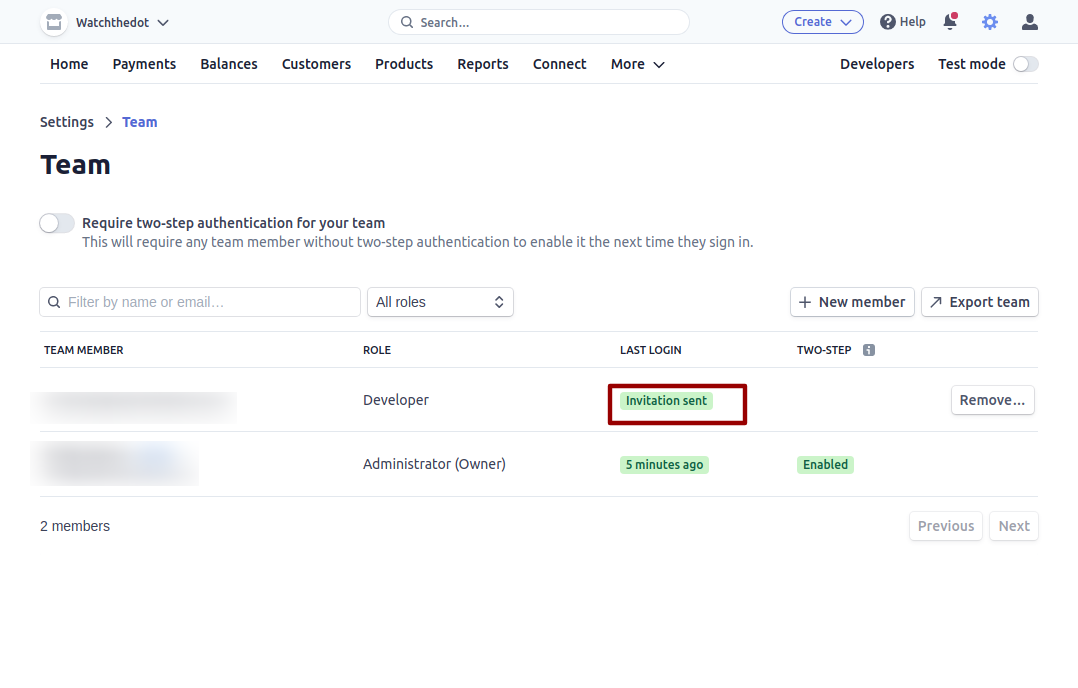
The user will now receive an email. You will be notified when they have accepted the invite
Want us to do it for you?
Order our paid support product