
Each hosting account has its own control panel (cPanel), where you manage email accounts, files, databases and backups. You don’t need a separate password for it: log in to the Watch the Dot client portal and go straight in from there, however many hosting accounts you have.
-
Open Your services
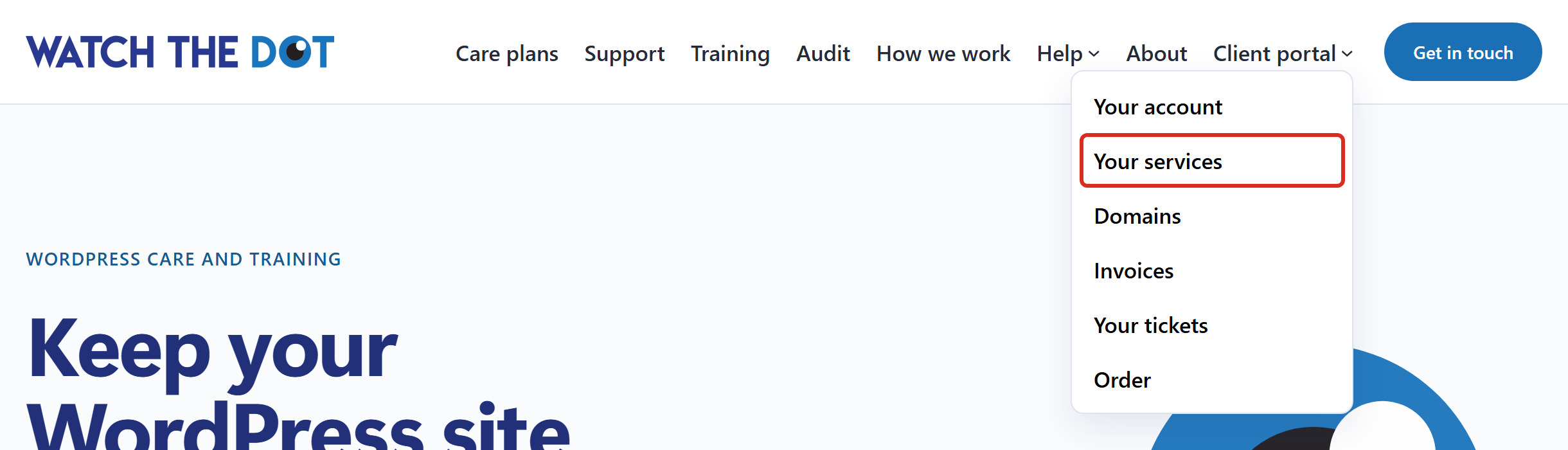
On watchthedot.com, open Client portal in the menu and choose Your services.
-
Log in
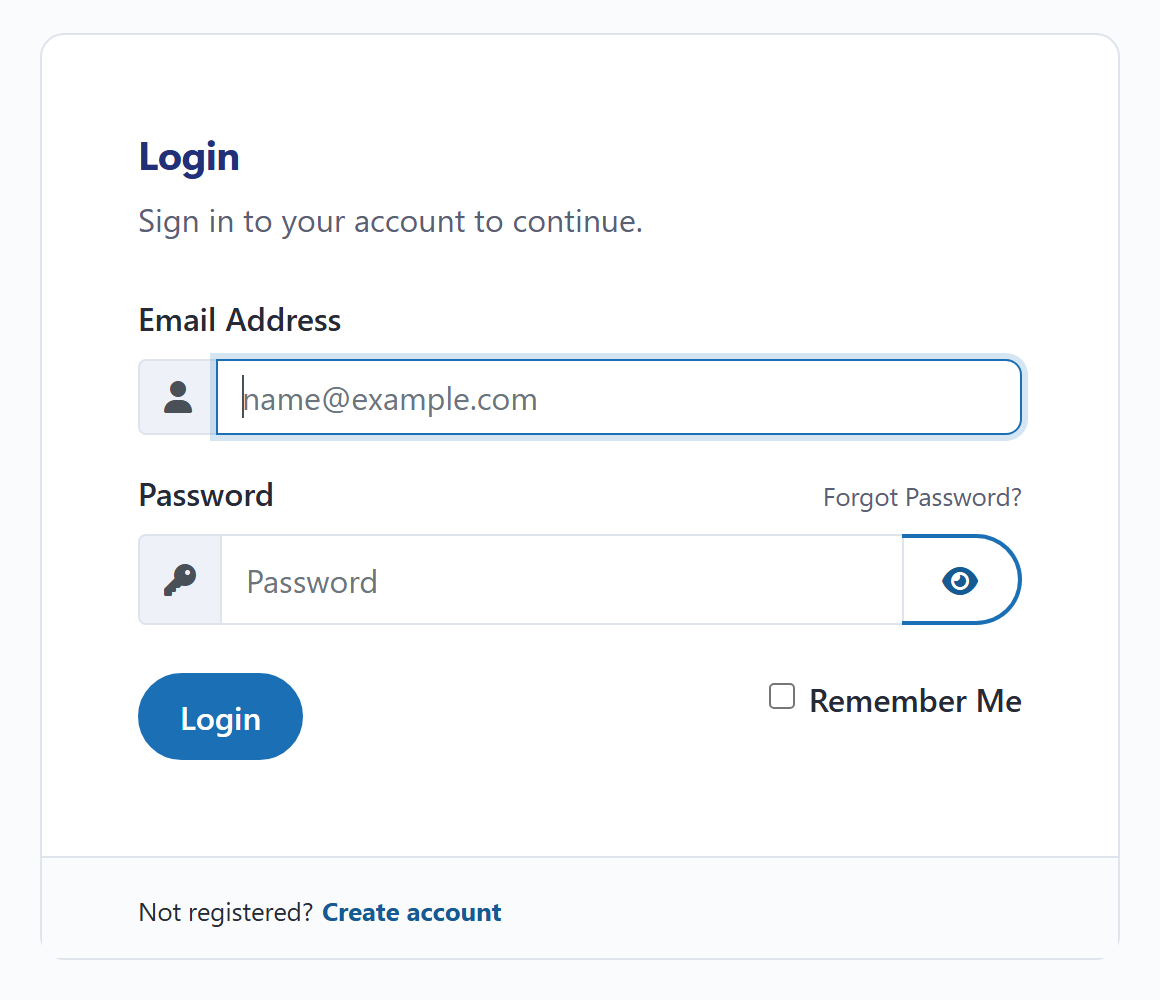
Enter the email address and password for your Watch the Dot account, then click Login. Forgotten your password? See Log in to the Watch the Dot client portal.
-
Choose the hosting account
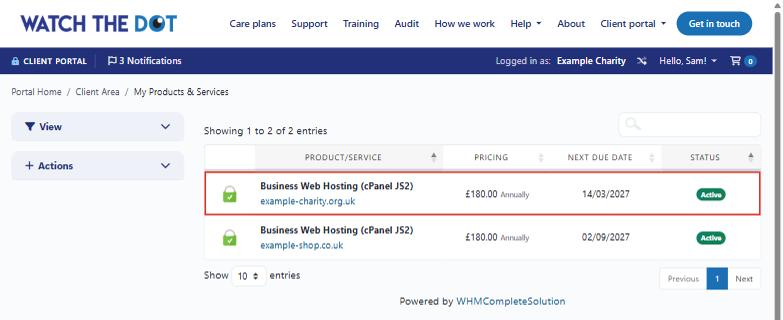
Your services are listed with their website address underneath. Click the row for the hosting account you want.
-
Log in to cPanel
Under Actions on the left, click Log in to cPanel. Your control panel opens, already logged in.
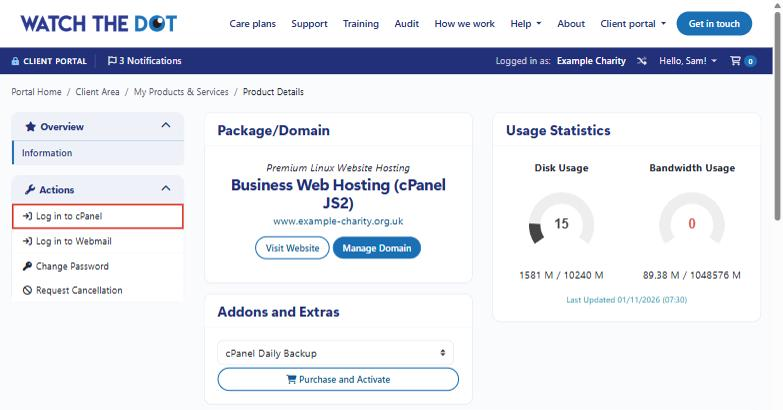
Log in to Webmail, just below Log in to cPanel, opens webmail in the same way. The page also has Quick Shortcuts to common cPanel tools, such as Email Accounts, File Manager and Backup.